How to Create Your First Price Alert on GSE Monitor
A price alert emails you when a stock reaches the price you care about, so you do not have to keep checking the chart. You set it up in under a minute from the Charts page on GSE Monitor. This guide uses MTNGH as the example. The same steps work for any stock on the Ghana Stock Exchange.
By Delasi · 2 November 2026
Step 1: Click My Alerts
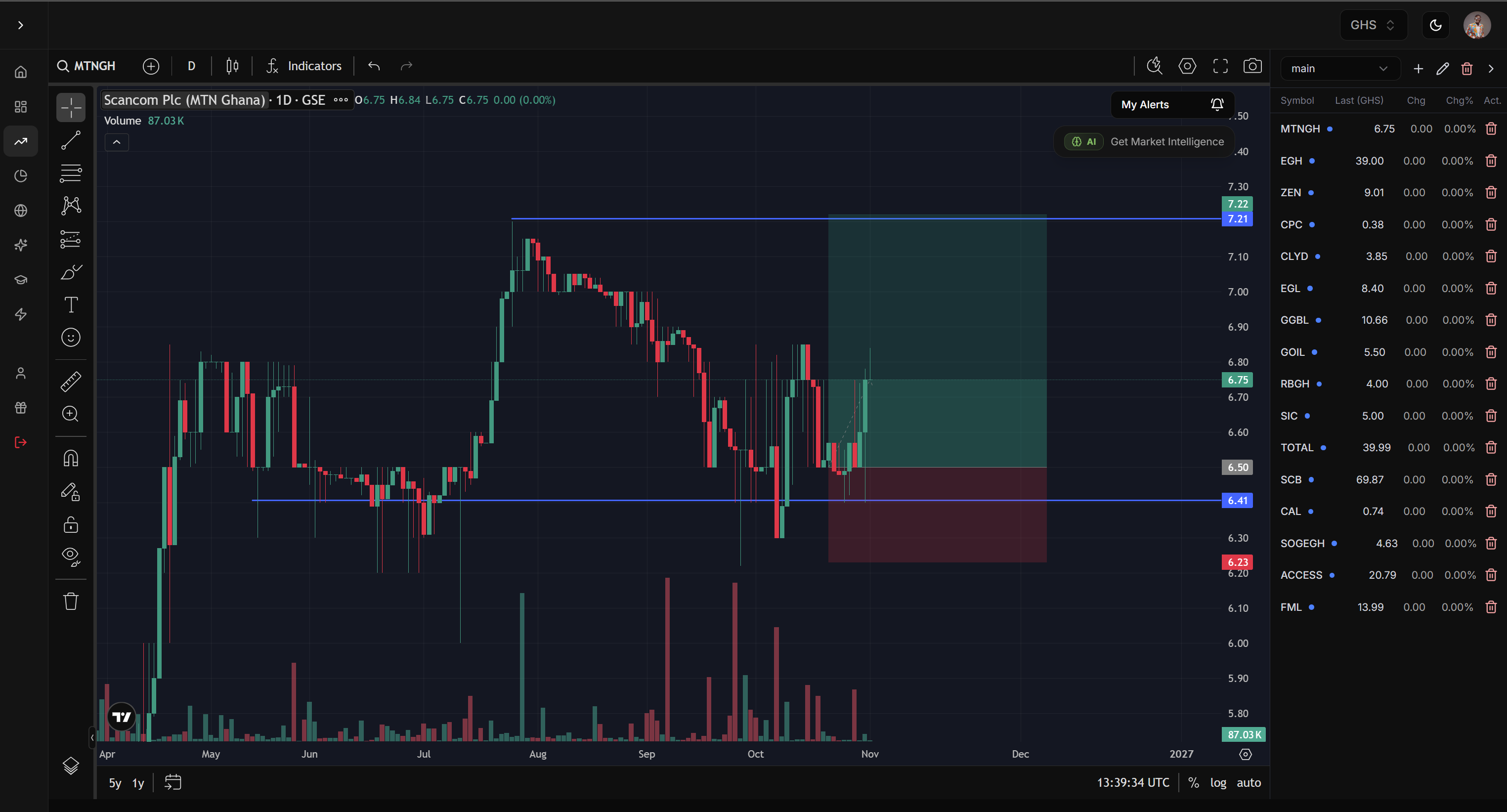
To create an alert, click the My Alerts button (the bell icon) at the top right corner of the chart.
Not seeing it? Click the Charts icon in the left sidebar, then search for your stock at the top left of the chart. We use MTNGH here.
Step 2: Click Add price alert
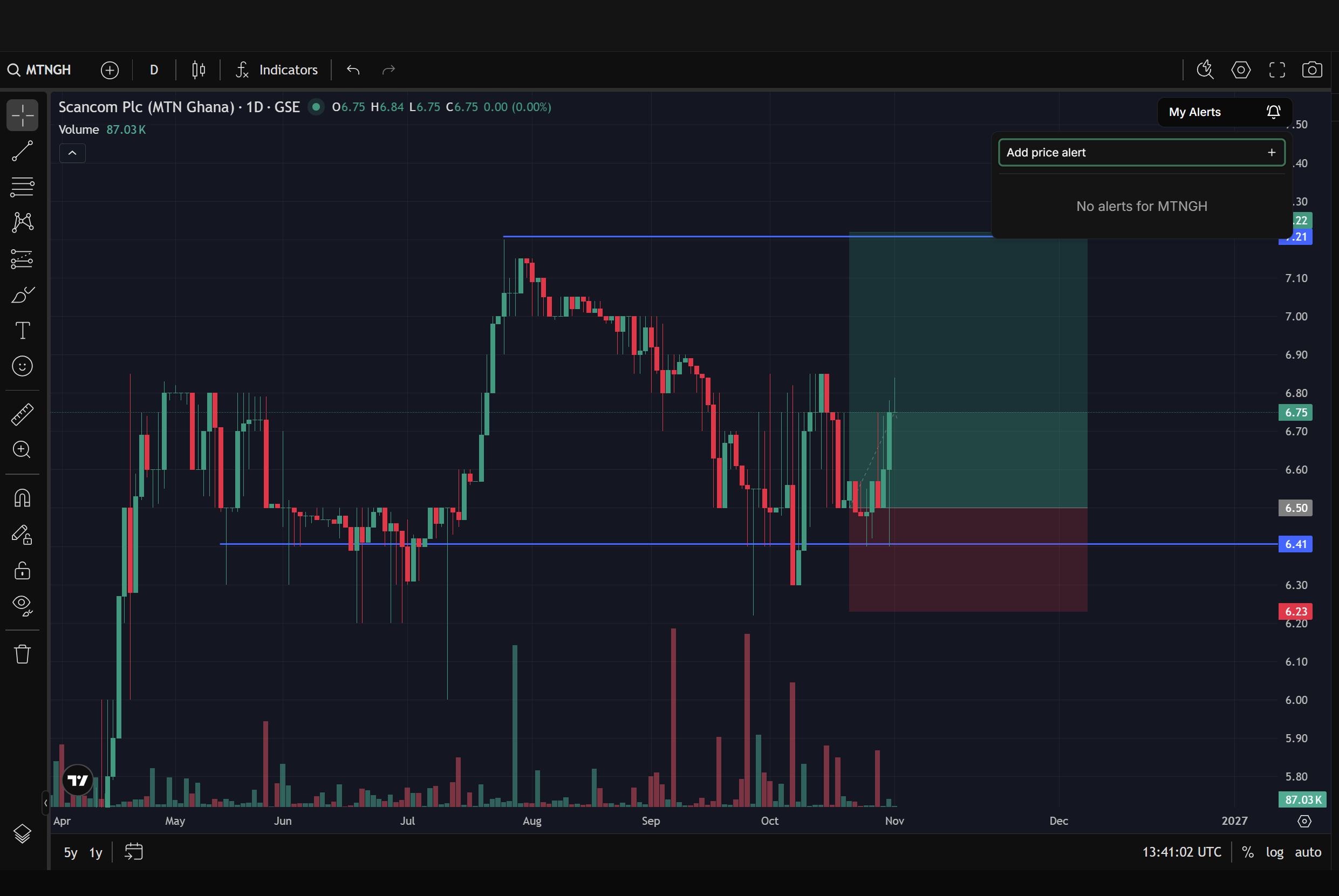
A small panel opens. If you have not set an alert for this stock yet, it says "No alerts for MTNGH". Click Add price alert.
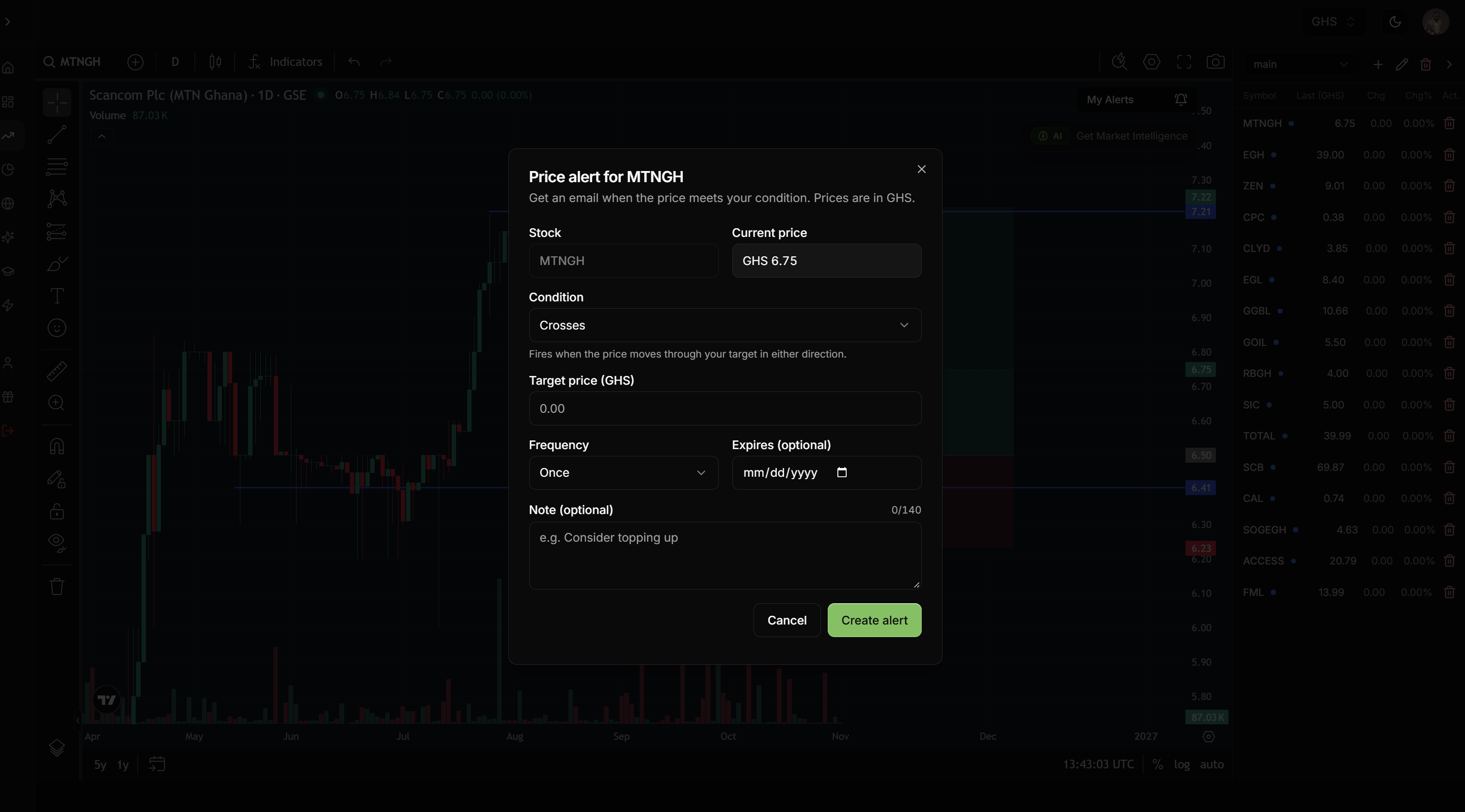
A window called "Price alert for MTNGH" opens. It reminds you that you will get an email when the price meets your condition, and that all prices are in GHS.
Step 3: Fill in your alert
The Stock and Current price boxes are filled in for you. Complete the rest:
Condition. Choose when the alert should fire. The default is "Crosses", which fires when the price moves through your target in either direction.
Target price (GHS). Type the price you want to be told about. In this guide we use 6.80, just above the current price of 6.75.
Frequency. Choose "Once" or "Once per day".
Expires (optional). Pick a date if you want the alert to stop after a certain day.
Note (optional). Add a reminder to yourself, up to 140 characters. For example: "Consider topping up".
Choosing a condition
Click the Condition box to see all nine options.
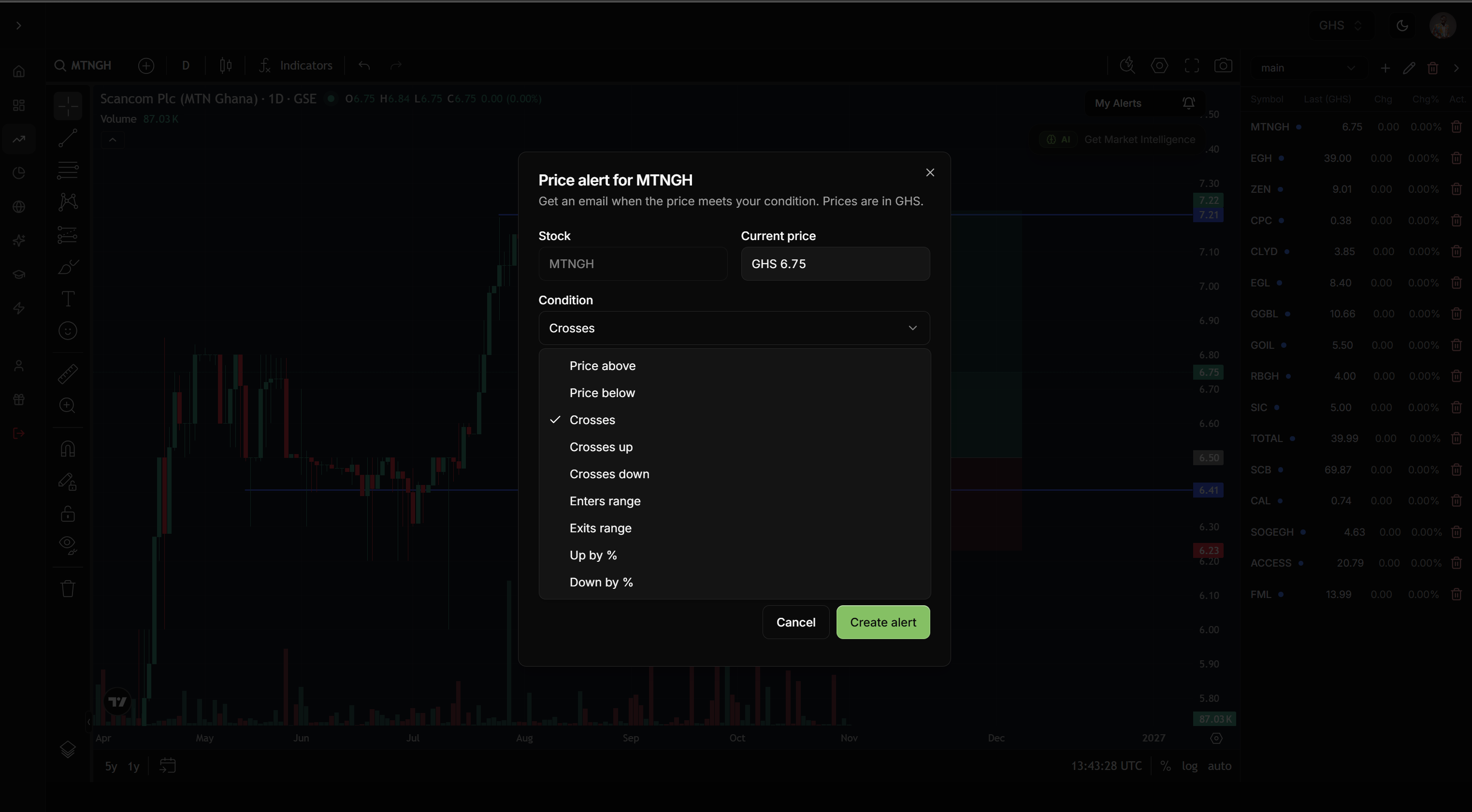
Condition | Use it when you want to know… |
|---|---|
Price above | the price has gone above your target |
Price below | the price has dropped below your target |
Crosses | the price has moved through your target in either direction |
Crosses up | the price has moved up through your target |
Crosses down | the price has moved down through your target |
Enters range | the price has moved into a price range |
Exits range | the price has moved out of a price range |
Up by % | the price has risen by a percentage |
Down by % | the price has fallen by a percentage |
Choosing how often
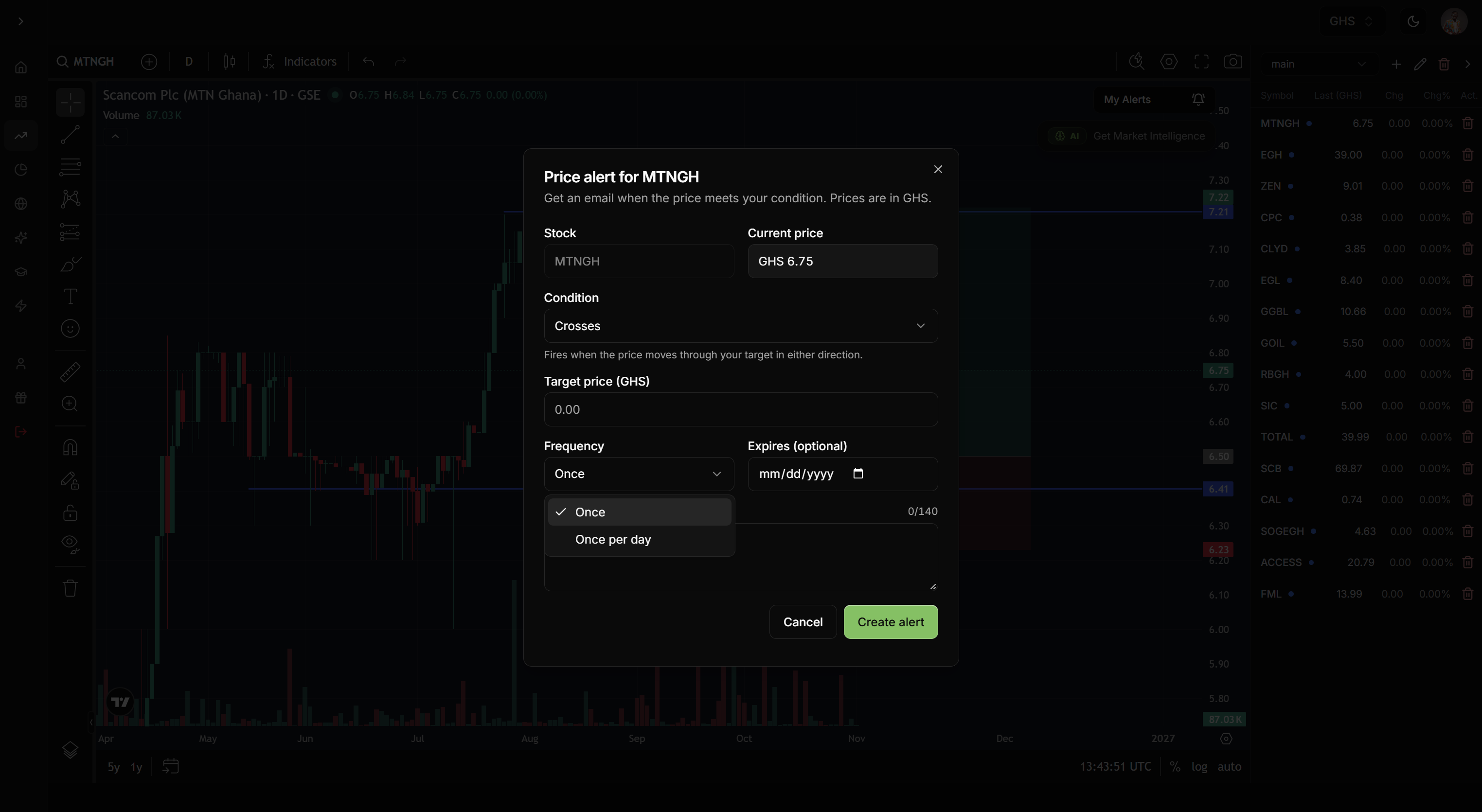
Click the Frequency box. "Once" is the default.
Step 4: Create the alert
Check your target price, then click the green Create alert button. Click Cancel if you change your mind.
Step 5: Check your alert
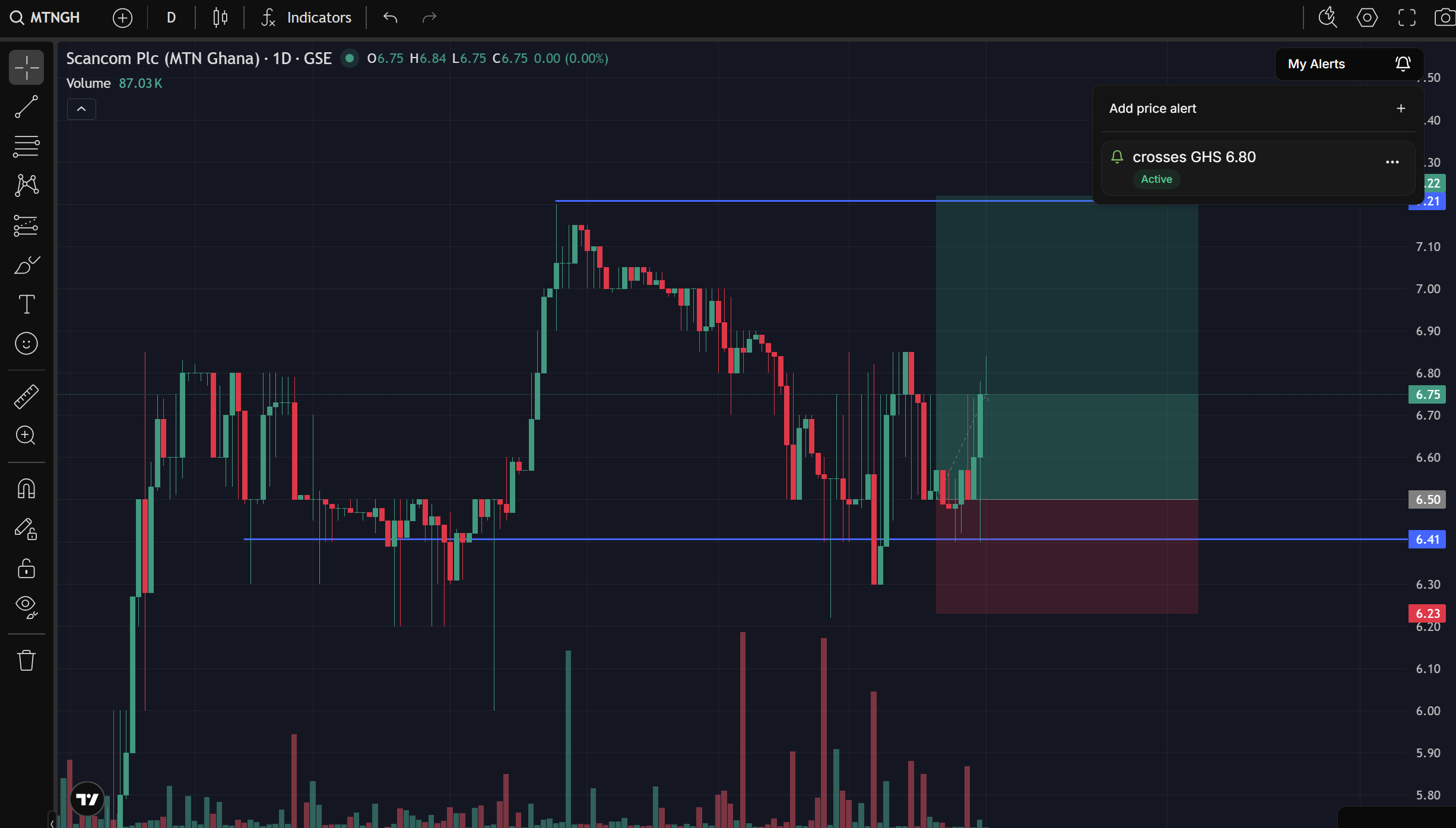
Open My Alerts again. Your new alert is listed under "Add price alert" with a green Active tag. In our example it reads "crosses GHS 6.80". Click the ... button on the right of the alert to see what else you can do with it.
When MTNGH reaches your target, GSE Monitor sends you an email.
Quick answers
How will I be notified? By email, as the alert window says.
Can I set more than one alert on a stock? Click Add price alert again to add another.
Do I need to type the symbol again? No. The stock is filled in from the chart you opened.