How to Create Your First Portfolio on GSE Monitor
A step-by-step guide to creating your first portfolio on GSE Monitor, by adding one holding at a time or uploading a broker statement. In about five minutes you can have a portfolio on GSE Monitor that tracks the Ghanaian shares you own, shows how much each one is worth, and lets you see your gain or loss at a glance. You can add holdings one at a time, or upload a broker statement in one go.
By Delasi · 2 November 2026
Before you start
Keep your records for each purchase to hand. A contract note from your broker, or your broker's statement, is the best source. For every holding you will need:
the company (its ticker)
the number of shares you bought
the price you paid per share, in cedis (GHS)
the date you bought
the name of your broker
If you do not own any shares yet, you can still follow along. GSE Monitor lets you create a demo portfolio, so you can practice with sample holdings and see how everything works before you add real purchases. Holdings in a demo portfolio carry a Demo label, as you will see in the screenshots below. GSE Monitor tracks what you own, and buying or selling shares still happens through a licensed broker (see Part 5 of our beginner series).
Tip: record the price you actually paid, not the price you saw on screen before you ordered. The contract note shows the executed price.
The steps
Step 1. Click Add Record on your Portfolio page. In the menu on the left, click Portfolio. Then scroll to Portfolio Details and click the green Add Record button at the top right of that section.
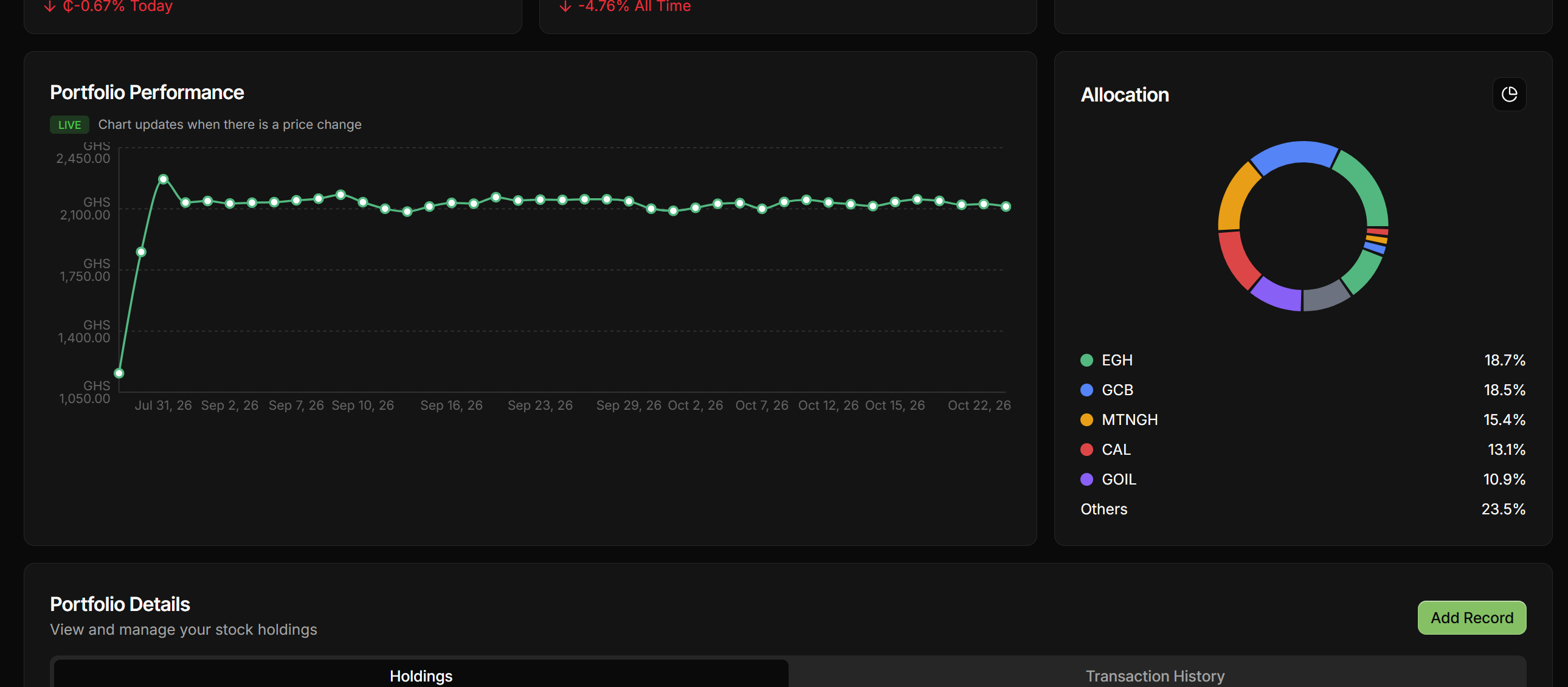
The Portfolio page. The green Add Record button is at the top right of Portfolio Details.
Step 2. Choose Single or Multiple. A box titled Add record asks you to choose how you want to add records. You have two options:
Single: type in one holding yourself. Best when you have a few purchases, or your broker is not supported for statement upload.
Multiple: upload a broker statement as a PDF and add many records at once.
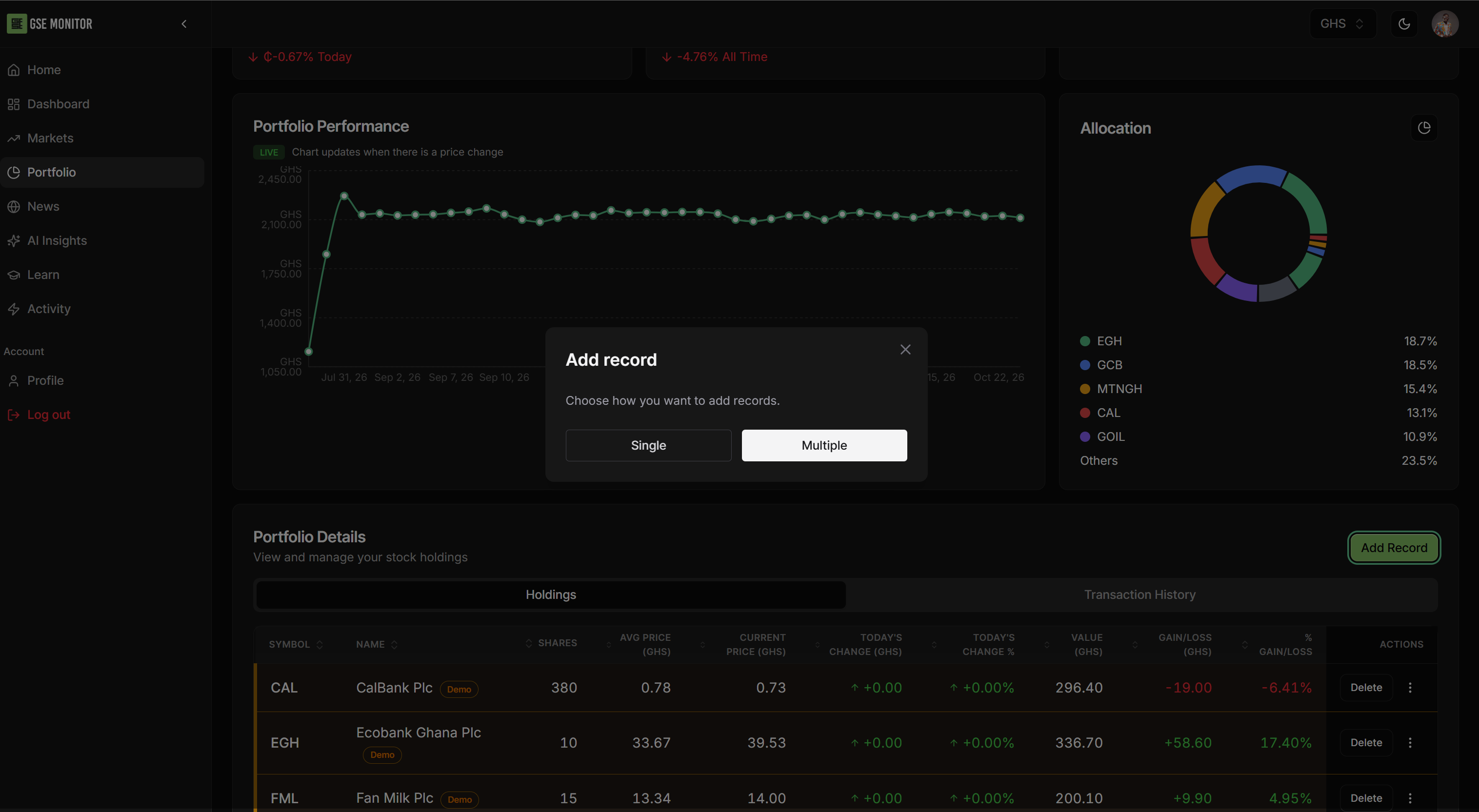
Choose Single to type in one holding, or Multiple to upload a broker statement.
The next two sections walk through each option. Pick the one that fits you.
Option A: add one holding with Single
Click Single and the Add Portfolio Record form opens. Fill it in from your contract note:
Field | What to enter |
|---|---|
Ticker | Choose the company from the drop-down list |
Number of Shares | How many shares you bought |
Purchase Price (GHS) | The price you paid per share, in cedis |
Purchase Date | Defaults to today's date. Change it to the date on your contract note |
Broker | Choose your broker from the drop-down list |
Then click the green Add Record button. (Cancel closes the form without saving.)
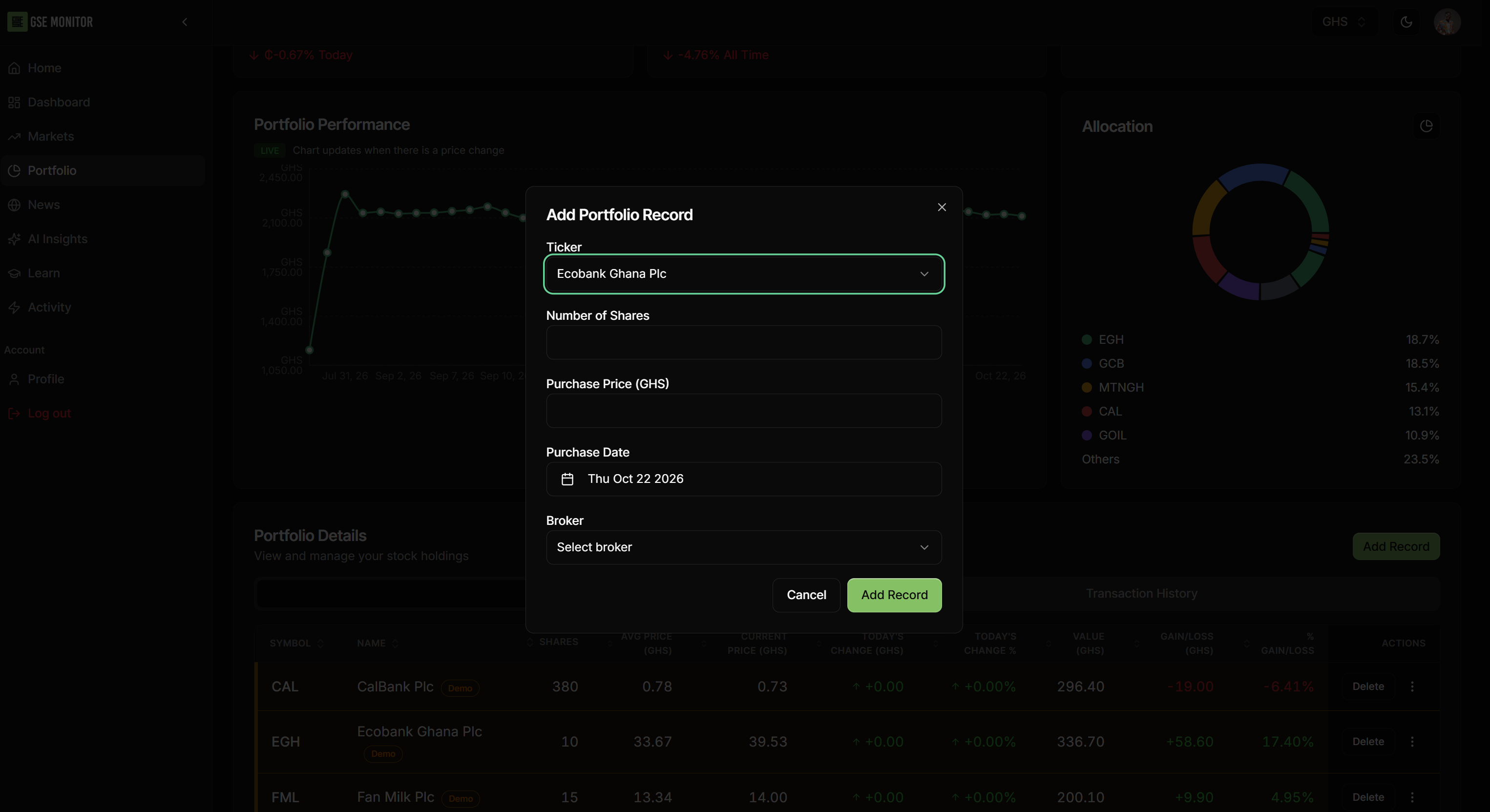
The Add Portfolio Record form. Fill in each field from your contract note.
Example (invented figures, for illustration only). Suppose your contract note shows you bought 10 shares of Ecobank Ghana Plc at GHS 30.00 each. You would choose Ecobank Ghana Plc as the ticker, enter 10 shares, a purchase price of 30.00, the date on the note, and your broker. These numbers are made up to show how the form works. They are not a price quote or a recommendation.
After you click Add Record, the holding appears in the Holdings table under Portfolio Details. Repeat the steps for each purchase you want to track.
Option B: add many holdings at once with Multiple
If you have a broker statement, Multiple saves you typing each purchase by hand.
Click Multiple in the Add record box.
The Upload your broker statement (PDF) box opens. Read the note at the top: IC Wealth and Databank are currently the only supported brokers. Please verify your broker before uploading.
Browse your device for the PDF, or drag and drop it onto the box. The maximum file size is 5 MB.
Click Upload. (The button looks greyed out until a file is added.)
When the upload finishes, check your Holdings table against the statement.
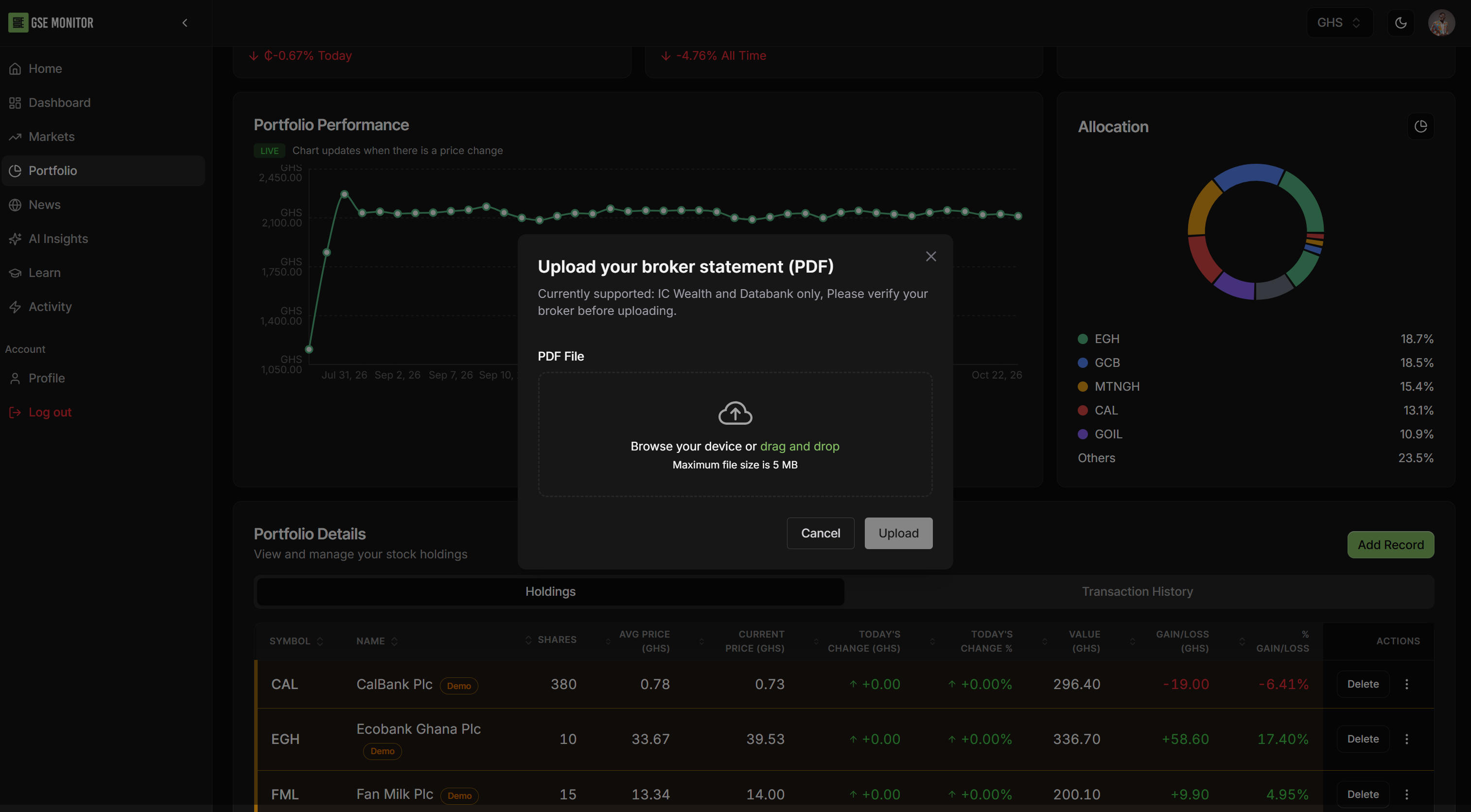
Statement upload accepts a PDF up to 5 MB. IC Wealth and Databank are the supported brokers.
If your broker is not on the list, use Option A and add each holding with the Single form.
Check what you upload. A broker statement contains personal and account details, so upload only your own statement, and only from your own device. After the upload, compare the shares and prices in the Holdings table with the statement line by line. If something looks wrong, correct it before you rely on the totals.
Reading your portfolio
Once you have added a record, the Portfolio page fills in. Here is what each part shows.
Totals at the top. Three cards summarise your portfolio: Total Portfolio Value, with today's percentage change underneath; Total Gain/Loss, with the all-time percentage change; and Number of Holdings.
Portfolio Performance. A chart of your portfolio's value over time, in cedis. It carries a LIVE tag with the note that the chart updates when there is a price change.
Allocation. A ring chart with a legend listing each ticker and the share of your portfolio it makes up, with smaller holdings grouped as Others. This is the quickest way to spot concentration. If one company takes up most of the ring, a single bad result could hurt your whole portfolio (see Part 9 of the beginner series).
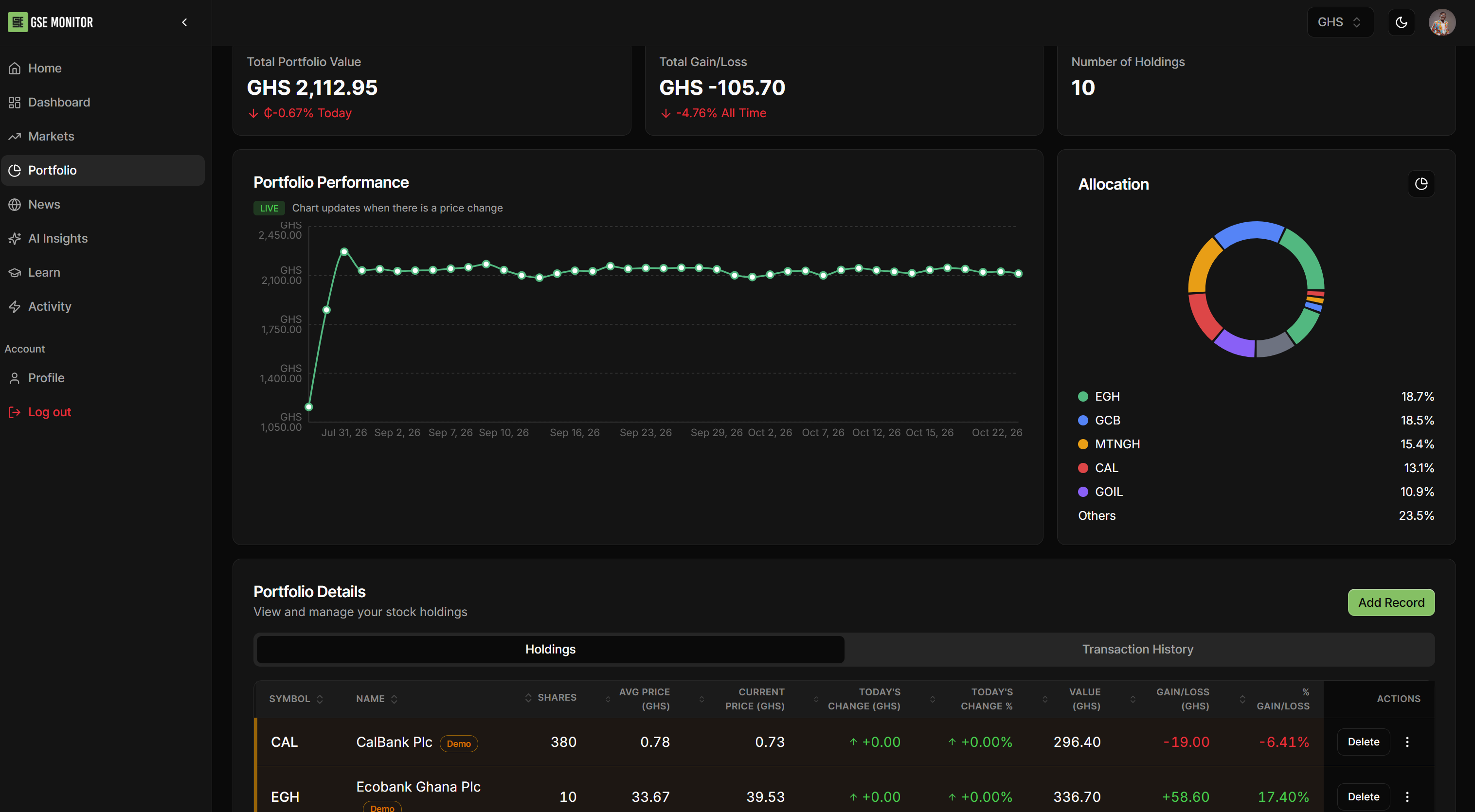
The full Portfolio page: summary cards at the top, Portfolio Performance and Allocation in the middle, and Portfolio Details below.
Holdings tab. One row per company, with these columns:
Column | What it tells you |
|---|---|
Symbol and Name | The ticker and company |
Shares | How many shares you hold |
Avg Price (GHS) | The average price you paid |
Current Price (GHS) | The latest price GSE Monitor has for the share |
Today's Change (GHS and %) | How the price has moved today |
Value (GHS) | What your holding is worth at the current price |
Gain/Loss (GHS and %) | The difference between current value and what you paid |
Actions | A Delete button and a menu (three dots) for the row |
Transaction History tab. Switch to this tab, next to Holdings, to see the records you have added.
Reading the gain or loss sensibly
Check the price and its timing. A current price is the platform's latest reading. It is not a guaranteed price at which you could sell, and a share that trades rarely can show a price that is days old.
Costs are not in the form. The Add Record form asks for shares, price, date and broker, but not for brokerage commission or levies. Keep your contract notes for the full picture of what each purchase cost you (Part 5 and Part 8 of the beginner series explain why costs matter).
A paper gain is not a realised gain. Until you sell, the gain or loss moves with the price.
Quick answers
Does GSE Monitor buy shares for me? No. GSE Monitor tracks what you own. Buying and selling shares still requires an account with a licensed broker.
I bought on an earlier date. Can I record that? Yes. The Purchase Date starts at today's date, so change it to the date on your contract note.
Which brokers work with statement upload? The upload box currently lists IC Wealth and Databank. For any other broker, add your holdings with the Single form.
I added something by mistake. How do I remove it? Find the row in the Holdings table and click Delete in the Actions column.
What to do next
Track the companies you are researching before you buy them, and keep your reasons for each purchase in a notebook or spreadsheet. The beginner series explains how to research a company (Parts 6 and 7) and how to think about the mix of holdings you end up with (Part 9).
This tutorial describes a tracking tool. It is not investment advice, and prices shown in any tracker should be checked against your broker's records and official GSE data before you act.